




Wireshark Tutorial 2026: How to Capture and Analyze Network Traffic
By Irene Holden
Last Updated: January 9th 2026
Quick Summary
You can capture and analyze network traffic with Wireshark by installing the official client and the correct capture driver (Npcap on Windows), selecting the active interface with admin or wireshark-group permissions, and using short, focused captures so you don’t drown in noise. Use BPF capture filters to limit saved data and flexible display filters (examples: http, dns, ip.addr == 192.168.1.10, tcp.flags.syn == 1 && tcp.flags.ack == 0) to inspect traffic - start with 5-10 second captures (one web request or an nslookup), use the three panes and Follow TCP Stream, then leverage Protocol Hierarchy, Conversations, and IO Graphs to spot anomalies before saving and redacting .pcapng files for sharing.
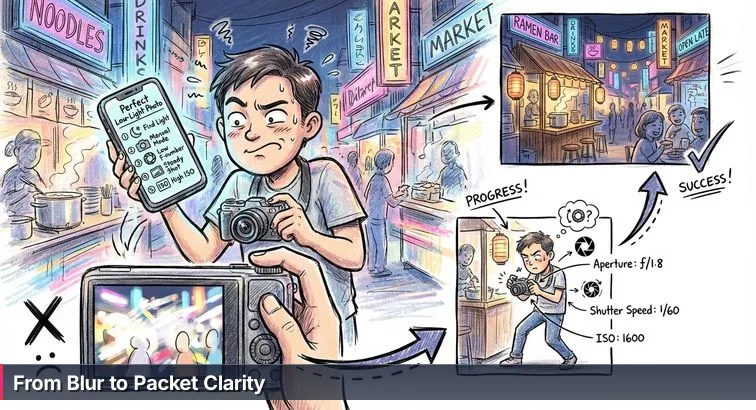
Before you walk back into the “night market” of raw packets, it helps to pack the right gear and know where you’re allowed to point your camera. Wireshark is powerful enough that even experienced admins describe it as having a “huge learning curve,” and verified reviews note that the interface can feel overwhelming until you learn to narrow the view with filters and good habits.
“So many protocols. So many IP addresses… but not to lie, hands on this tool made it super easy for me to learn networking concepts.” - Amber, cybersecurity beginner, in a Wireshark learning blog on Dev.to
Technical prerequisites
Think of this as checking your camera batteries and memory card before you leave home. You do not need to be a network engineer, but you’ll have a much easier time if you’re already comfortable with a few basics and your system is set up to actually see traffic.
- Know what an IP address is (for example, 192.168.1.10) and that it identifies a device on the network.
- Understand that ports (like 80 for HTTP and 443 for HTTPS) represent specific networked services.
- Be able to explain “client vs. server” in plain language (who starts the conversation, who answers).
- Use a desktop or laptop running Windows 10/11, macOS, or a modern Linux distribution.
- Have administrator/root rights on your own machine, since live packet capture requires low-level access, as also noted in introductory guides like freeCodeCamp’s Wireshark walkthrough.
Tools you’ll need
At minimum, you need a camera (Wireshark), a lens (the capture driver), and a safe place to shoot (a network you control). Installing Wireshark alone isn’t enough; without the right capture driver or environment, you’ll open the app and see nothing but silence where traffic should be.
- Wireshark (latest version) from the official site, which remains the de facto standard packet analyzer across operating systems.
- A compatible capture driver (for example, Npcap on Windows) so Wireshark can actually see packets on the wire.
- A working internet connection or lab network to generate real traffic.
- A test environment you control:
- Your home Wi-Fi or wired network.
- A lab VM or small test subnet that you explicitly own or administer.
Pro tip: If you’re running Wireshark inside a virtual machine, set the VM’s network adapter to bridged or NAT mode so it actually sees real traffic instead of staring into an empty frame.
Ethical and legal boundaries
Here’s where the photography metaphor really matters: pointing Wireshark at a network is like aiming a high-zoom lens into people’s conversations. Just as you wouldn’t quietly photograph strangers through apartment windows, you should never capture traffic on networks you don’t own or have written permission to monitor. According to security overviews like UpGuard’s guide to Wireshark, packet captures are so detailed they’re often used as legal “ground truth” in incident investigations - which is exactly why mishandling them can cross into wiretapping or computer misuse territory.
- Only capture on your own networks or environments where you have explicit authorization (for example, a lab provided in a course or by your employer).
- Do not sniff traffic on public Wi-Fi, neighbors’ routers, school networks, or workplace systems without formal written approval.
- Assume captured data may include sensitive information (logins, browsing history, internal hostnames) and treat PCAP files as confidential.
Warning: Many countries treat unauthorized packet sniffing like secretly recording phone calls. If you wouldn’t feel comfortable explaining your capture to your manager, school, or ISP, don’t do it. In this tutorial, every exercise is designed for your own machines or lab only, so you can practice focusing the “lens” without crossing any ethical or legal lines.
Steps Overview
- Before you start: prerequisites, tools, and ethics
- Start with a question to frame your capture
- Install and configure Wireshark correctly
- Learn the Wireshark interface: the three panes
- Pick the right interface and use capture/display filters
- Use display filters to focus and reduce noise
- Hands-on: capture and analyze HTTP traffic
- Hands-on: generate and inspect DNS queries
- Hands-on: spot port-scan patterns at the packet level
- Use statistics to spot anomalies and red flags
- Save, share, and document your findings professionally
- Verify your skills and troubleshoot common problems
- Common Questions
If you want to get started this month, the learn-to-read-the-water cybersecurity plan lays out concrete weekly steps.
Start with a question to frame your capture
Instead of hitting “Start” and spraying packets like snapping random photos in a crowded night market, you’ll move much faster if you choose a subject first. In Wireshark terms, that means writing down a single, clear question before every capture so you know exactly what you’re trying to see come into focus.
“Without the right filters and focus, you end up staring at thousands of lines of meaningless noise.” - Verified Wireshark user review on Capterra
Why framing your question matters
Wireshark is used everywhere from small IT shops to government agencies, but the tool itself doesn’t tell you what matters; it just shows you everything. Reviewers and trainers repeatedly point out that the difference between overwhelm and insight is having a specific question in mind and then using filters to answer it, a pattern you’ll see reinforced in official resources like the Wireshark User’s Guide on filters.
When you start a capture “just to look around,” you get the digital equivalent of an overexposed, blurry photo: thousands of packets, no story. When you start with a focused question, every filter, click, and scroll serves a purpose, and it becomes much easier to decide which packets belong in the frame and which can fade into the background.
Pro tip: Before you ever touch the Capture button, write one sentence in a notebook or text file that starts with “I want to know whether…” and finish that thought. That’s your subject in the crowd.
Examples of good investigative questions
Here are examples of the kind of questions that help you aim Wireshark like a camera at one stall in the market instead of the whole street:
- “Why is this web app so slow for this user?”
- “Is this host actually talking over HTTPS, or sending data in cleartext?”
- “Is anyone scanning my server for open ports?”
- “What IP is a suspicious domain resolving to?”
For this tutorial, we’ll build three small “photo shoots” around specific questions:
- HTTP: What does a single web request look like on the wire?
- DNS: How does my machine translate a domain to an IP?
- Port scan: What does a scan pattern look like in packets?
Each of these can be answered with a short, controlled capture and a couple of display filters. That’s exactly how professionals narrow tens of thousands of packets down to the few that matter in real incidents.
Turn questions into small experiments
Once you’ve picked a question, the next step is to design a tiny test that will generate just enough traffic to answer it. For example, if your question is about DNS, you might plan to run a single nslookup or dig command while capturing. If your question is about a slow web app, you might decide to log in once, reproduce the slowness, then stop the capture immediately afterward.
This “one action per capture” mindset makes it much easier to map what you did to what you see on-screen. Over time, you’ll start to recognize patterns - like a three-way TCP handshake or a burst of DNS queries - the same way photographers learn how different lighting setups will look in the final image.
Common pitfalls to avoid
Beginners (and plenty of experienced folks on a busy day) tend to fall into the same traps when they skip this step:
- Starting a capture with no question at all, then getting lost in scroll-back.
- Trying to answer 5 problems in one go (latency, malware, DNS issues, “is it encrypted,” and port scans) instead of focusing on one.
- Letting captures run for minutes or hours, which turns every later filter into a slog.
If you catch yourself lost in the blur, stop the capture, delete it, and ask yourself one precise question. Then start a fresh capture aimed only at that. Treat each capture like a single, deliberate shot, not a continuous burst, and Wireshark will go from chaos to something you can control and interpret.
Install and configure Wireshark correctly
Getting Wireshark installed correctly is like putting the right lens on your camera and making sure the memory card is actually in: if you miss one tiny step, you can open the app, press “Start,” and still end up with a completely blank frame. The goal here is simple and practical - by the end of this section, you’ll have Wireshark capturing real traffic on your system without running it as full-blown root or admin wherever possible.
“Wireshark excels in detailed, real-time packet analysis and is more user-friendly if you prefer a graphical interface and rich visualization tools.” - StationX, tcpdump vs Wireshark comparison
Install on Windows (with Npcap)
On Windows, the critical piece most beginners miss is the capture driver. During installation, Wireshark will prompt you to install Npcap; if you skip it, Wireshark opens fine but sees nothing. That’s why many practical guides, like the Wireshark network packet analysis user guide, stress driver installation and admin rights for live capture.
- Download the latest Wireshark installer from the official site.
- Run the installer and, when prompted, accept installation of Npcap.
- Leave most options at their defaults unless you know you need something specific.
- After installation, run Wireshark as a normal user; Npcap handles the low-level access.
- Pro tip: If you ever reinstall Wireshark and suddenly see no packets, check whether Npcap was removed or not reinstalled.
Install on macOS
- Download the macOS build from the Wireshark site (choose the Apple Silicon or Intel version that matches your hardware).
- Open the package and follow the installer prompts.
- When macOS asks for permission to monitor the network, click Allow; without this, Wireshark can’t see traffic.
- After installation, launch Wireshark from Applications like any other app.
- Warning: If you deny those system permissions, Wireshark may show interfaces but capture zero packets until you revisit Security & Privacy settings and grant access.
Install on Linux (Debian/Ubuntu example)
On Linux, the “gotcha” is usually permissions. You can always run Wireshark with sudo, but that’s risky. A safer pattern is to add your user to the dedicated wireshark group so you can capture without full root privileges; this is the approach recommended in many university lab manuals and tool guides.
- Install Wireshark and its dependencies:
sudo apt update
sudo apt install wireshark
- When prompted during installation, choose “Yes” to allow non-superusers to capture packets (you can change this later if needed).
- Add your user to the
wiresharkgroup:
sudo usermod -aG wireshark $USER
- Log out completely and log back in so the new group membership takes effect.
Verify Wireshark can actually see traffic
Once it’s installed, you want a quick sanity check before you dive into deeper analysis. This is the equivalent of taking a test shot and zooming in to make sure it’s not just black. Launch Wireshark and look for your main interface (Wi-Fi, Ethernet, or a VM adapter). Double-click it, and you should see packets start to scroll almost immediately; if you don’t, the problem is almost always missing permissions, the wrong interface, or a driver issue. Keep in mind that live capture requires admin/root rights or group-based permissions, but opening and analyzing saved capture files does not, which is why many teams safely review PCAPs on locked-down analyst workstations. If all you see is silence, revisit the steps above - fixing installation and access now will save you hours of wondering why your “night market” looks empty later.
Learn the Wireshark interface: the three panes
When you first open Wireshark, it can feel like staring through a viewfinder that’s already crammed with movement and color. The trick to reducing that sense of blur is understanding how the interface is sliced into three panes, each showing a different “zoom level” of the same packet. Once those pieces click, the screen stops being chaos and starts looking more like a contact sheet you can actually work with.
“The Wireshark interface is divided into three main panes, each revealing a different layer of network information and making complex traffic much easier to dissect.” - Oluwatobi Mustapha, Network Traffic Analysis with Wireshark (Medium)
See how the three panes work together
Every time a packet flows through your capture, Wireshark pushes it through the same three-part layout. Think of it as moving from a wall of thumbnails, to a single photo with its metadata, all the way down to the raw sensor data.
- Packet List (top pane) - This is your thumbnail gallery: one row per packet. You’ll see packet number, capture time, source and destination addresses, protocol (like TCP, UDP, HTTP, DNS), and a short info summary. When people talk about “thousands of packets flying by,” they’re talking about this pane.
- Packet Details (middle pane) - This is the expanded view of the selected packet, broken into protocol layers. You can unfold Ethernet, IP, TCP/UDP, and application protocols like HTTP or DNS to see fields such as flags, ports, and status codes.
- Packet Bytes (bottom pane) - Here you’re looking at the raw data: hex on the left, ASCII on the right. This is where human-readable strings (like URLs or form fields in unencrypted HTTP) may appear, and where analysts often verify exactly what was on the wire, as described in many step-by-step traffic analysis guides.
Mini exercise: inspecting a single packet
To make the interface feel less abstract, you’re going to capture a tiny bit of traffic and walk one packet through all three panes, like zooming closer and closer on a single subject in the crowd.
- Start Wireshark and double-click your main network interface (Wi-Fi or Ethernet).
- Let it run for 5-10 seconds while you load a simple web page or refresh an existing tab.
- Click the red square Stop button to end the capture.
- In the Packet List, click a packet with protocol TCP or HTTP.
- In the Packet Details pane, expand:
- Internet Protocol Version 4 to see source/destination IPs.
- Transmission Control Protocol to see ports and flags.
- The application layer (for example, Hypertext Transfer Protocol) if it’s present.
- Glance at the Packet Bytes pane and watch how highlighting a field in the middle pane also highlights the corresponding bytes below.
Pro tip: Use the up/down arrow keys to move between packets and the left/right arrows to expand or collapse protocol trees; this keeps your mouse from bouncing between panes and speeds up analysis. Warning: If you accidentally drag pane borders or close one, don’t panic - go to View → Layout and reset back to the default three-pane view so your “viewfinder” looks familiar again.
Pick the right interface and use capture/display filters
Picking the right network interface and basic filters is like choosing where you stand in the night market and what you include in your frame. If you point Wireshark at the wrong interface, you get an empty shot; if you skip filters, you end up with a blurry wall of packets. This section helps you pick the correct “vantage point” and apply just enough filtering so what you care about stands out.
Choose the correct network interface
When Wireshark starts, it lists every interface your system knows about: Wi-Fi, Ethernet, virtual adapters, VPNs, even loopback. Only one or two of these actually carry the traffic you care about. On laptops, that’s usually Wi-Fi; on desktops or lab VMs, it might be Ethernet or a virtual NIC. Watch the small moving graphs and packet counters next to each interface and double-click the one that’s clearly active while you browse the web. If you’re in a VM, make sure its adapter is set to bridged or NAT so it sees real traffic. Starting a capture on the right interface is the first step in “framing the shot” before you even think about filters.
Understand capture vs display filters
Wireshark gives you two layers of control over what you see: capture filters (what gets recorded) and display filters (what gets shown). Capture filters use low-level BPF syntax and must be set before you start; they’re great for saying “only record DNS” or “only record traffic to this host” when you know exactly what you want. Display filters, on the other hand, are far more flexible and can be changed at any time to slice and dice what’s already in your file, which is why threat-hunting guides like Unit 42’s display filter tutorial lean heavily on them for real investigations.
“Capture filters decide which packets get saved at all, whereas display filters let you focus on specific conversations inside a capture.” - Packet Pushers, Understanding Wireshark Capture Filters
| Feature | Capture Filters | Display Filters |
|---|---|---|
| When applied | Before starting capture | During or after capture |
| Syntax | BPF (e.g., host 192.168.1.10) | Wireshark-specific (e.g., ip.addr == 192.168.1.10) |
| Effect on data | Not recorded if it doesn’t match | Recorded but simply hidden from view |
| Change mid-capture? | No | Yes |
Practical filter examples and common pitfalls
For most beginners, a light touch with capture filters and heavier use of display filters is the safest approach. Good starter capture filters include host 192.168.1.10 (only your machine), tcp port 80 (unencrypted HTTP), or port 53 (DNS only). After you’ve captured a short window, you can sharpen the focus with display filters like http, dns, ip.addr == 192.168.1.10, or tcp.flags.syn == 1 && tcp.flags.ack == 0 to spot connection attempts or scan-like patterns, an approach echoed in hands-on labs and cheat sheets on sites such as OnlineHashCrack’s Wireshark guide. Pro tip: if you’re not 100% sure your capture filter is right, leave it blank and keep your capture short; you can always refine with display filters later. Warning: a too-strict capture filter silently throws data away, so if you accidentally type a bad expression like http (which isn’t valid BPF) or point at the wrong host, those packets are never stored and you can’t get them back.
Use display filters to focus and reduce noise
Display filters are your focus ring in Wireshark: they don’t change what you’ve captured, but they decide what comes into sharp focus on the screen. Without them, even small captures can feel like a long-exposure blur; with a few well-chosen expressions, you can go from tens of thousands of packets down to the handful that matter.
What display filters actually do
Once packets are in your capture file, display filters act like a smart search bar. You type conditions about protocols, IPs, ports, or flags, and Wireshark instantly hides everything that doesn’t match. Unlike capture filters, you can change display filters as often as you like, which is why incident responders lean on them so heavily in workflows described by teams like Palo Alto Networks’ Unit 42. Think of it as re-framing your shot over and over without ever having to go back outside and reshoot the scene.
Apply your first filter step-by-step
To see how this works in practice, you’ll take an existing capture and “zoom in” on just one kind of traffic:
- Open a recent capture (or start a new one, browse a website for a few seconds, then stop).
- Click in the Display Filter bar at the top of Wireshark.
- Type a simple filter, for example http or dns.
- Confirm the bar turns green (valid syntax) and press Enter.
- Watch the Packet List shrink to only packets that match that protocol.
Pro tip: Click on any field in the middle “Packet Details” pane, then right-click → Apply as Filter → Selected. Wireshark will build a correct filter expression for you (for example, turning a clicked IP into ip.addr == 192.168.1.10), which is a great way to learn the syntax by example.
Essential display filter cheat sheet
Over time you’ll memorize a small set of filters you use constantly. Guides like the one on freeCodeCamp’s Wireshark tutorial recommend starting with a handful and combining them with logical AND (&&), OR (||), and NOT (!) operators as you get more comfortable.
| Goal | Filter Expression | What Comes Into Focus |
|---|---|---|
| See all HTTP traffic | http | Unencrypted web requests and responses on port 80 |
| Show all DNS packets | dns | Hostname lookups and their answers |
| Traffic to or from one host | ip.addr == 192.168.1.10 | Every packet involving that IP, any port |
| Spot initial TCP connection attempts | tcp.flags.syn == 1 && tcp.flags.ack == 0 | First SYN packets that often reveal scans or new sessions |
Tips, shortcuts, and common mistakes
As you practice, start combining filters to really cut through the noise: for example, ip.addr == 192.168.1.10 && http shows only HTTP for one host, while !arp && !dns hides background chatter so application traffic stands out. Warning: The most common beginner mistakes are using a single = instead of ==, expecting http to show encrypted HTTPS traffic (use tcp.port == 443 or tls instead), and forgetting a leading ! when trying to exclude something. When a filter doesn’t work, glance at the color of the bar (green vs red) and try building it again by right-clicking a field and letting Wireshark write the expression for you.
Hands-on: capture and analyze HTTP traffic
For this exercise, you’re going to take a single, deliberate “photo” of web traffic: one HTTP request and its response. Instead of watching a blur of packets, you’ll generate a tiny bit of traffic on purpose, capture it, and then zoom in until you can read the actual request headers on the wire.
Set up a simple, safe HTTP target
Because most public sites now force HTTPS, you’ll get the clearest practice by spinning up a tiny HTTP server you control. That way you’re not poking at anyone else’s systems, and you know the traffic will be unencrypted and easy to read. Many beginner labs and tutorials, like those on GeeksforGeeks’ Wireshark walkthrough, use the same pattern.
- On your own machine, create an empty folder (for example, C:\http-test or ~/http-test).
- Open a terminal or command prompt in that folder.
- Run a simple Python HTTP server on port 8000:
python -m http.server 8000 - In your browser, you’ll later visit http://127.0.0.1:8000/ (note: http, not https).
Warning: Only test against servers you own or are explicitly allowed to test. Treat this just like photographing in your own home or studio, not pointing a zoom lens at random apartments across the street.
Capture the HTTP traffic
Now you’ll “frame the shot” so Wireshark sees only the few packets you care about.
- Start Wireshark and double-click the interface that carries your traffic (often Wi-Fi or Ethernet).
- (Optional but helpful) Click the gear icon next to the interface and set a capture filter:
This records only traffic to your test server.tcp port 8000 - Click Start to begin capturing.
- In your browser, go to http://127.0.0.1:8000/ and refresh once or twice.
- Stop the capture with the red square button.
- In the Display Filter bar, type:
and press Enter. You should now see just a few HTTP packets.http
Pro tip: If you don’t see any HTTP packets, clear your capture filter, repeat the steps, and then rely only on the http display filter. It’s better to over-capture a little than to miss everything because of one typo.
Inspect the HTTP request and response
With only a handful of packets on-screen, you can zoom in on a single HTTP exchange and read it like a short conversation. Security analysts often call this level of detail “ground truth,” because it shows exactly what went over the wire; as one review on SecurityScorecard’s Wireshark overview puts it, deep packet inspection reveals “precisely how devices and applications are interacting on the network.”
“By examining packet contents in Wireshark, security teams gain a precise view of what actually traversed the network, beyond what logs alone can show.” - SecurityScorecard, Wireshark packet analysis guide
- In the Packet List, click a row whose Info column starts with GET / and shows protocol HTTP.
- In the Packet Details pane, expand Hypertext Transfer Protocol and note:
- Request Method: GET
- Request URI: / (or another path)
- Host: 127.0.0.1:8000
- Other headers like User-Agent and Accept
- Right-click that packet → Follow → TCP Stream to see the full HTTP conversation:
- In red: your browser’s request (GET line + headers).
- In blue: the server’s response (status line like HTTP/1.0 200 OK, headers, and possibly HTML content).
- Close the stream window when you’re done; your display filter will automatically change to show just that TCP conversation, which is a powerful way to isolate one “subject” in the crowd.
What if everything is HTTPS?
On real-world sites, you’ll usually see encrypted HTTPS instead of cleartext HTTP. That’s a good thing. If you capture traffic while visiting https:// sites and then filter with:
tcp.port == 443Hands-on: generate and inspect DNS queries
In this exercise, you’ll zoom in on another everyday piece of network life: DNS, the system your computer uses to turn names like nucamp.co into IP addresses. Instead of a blurry stream of mixed protocols, you’ll create a single, deliberate DNS lookup, capture it, and then walk through the request and response until you can read exactly which name was resolved to which IP.
Generate a DNS query from your own machine
First, you’ll trigger a single DNS request on purpose so you know exactly what you’re looking for in the capture. This is like asking one clear question in a noisy market and then replaying the recording to hear how it was answered.
- Start Wireshark and be ready to capture on your main interface (Wi-Fi or Ethernet).
- Open a terminal or command prompt on the same machine:
- On Windows, run:
nslookup nucamp.co - On Linux or macOS, run:
dig nucamp.co
- On Windows, run:
- Keep this terminal open; you’ll run the command right after starting the capture.
Capture and filter for DNS traffic
Now you’ll “frame the shot” around that single lookup so the DNS packets stand out clearly from everything else.
- In Wireshark, double-click your active interface to start a capture.
- Immediately switch to your terminal and run the nslookup or dig command from above.
- Once the command completes and prints an answer, stop the capture with the red square button.
- In the Display Filter bar, type:
and press Enter. You should now see only DNS packets, typically on UDP port 53.dns
Read the query and response like a conversation
With the noise filtered out, you can zoom in on the actual DNS exchange and see how your computer asked, “Where is nucamp.co?” and what it was told. Many cyber-attack walkthroughs, like Mohammed M. Alani’s cyber attack analysis with Wireshark, start exactly this way: identify the protocol, then drill into individual request/response pairs to understand what happened.
- In the Packet List, find the pair of packets related to your lookup:
- One with Info containing Standard query for nucamp.co (the request).
- One with Info containing Standard query response for nucamp.co (the answer).
- Click the query packet, then in the Packet Details pane expand Domain Name System (query) and note:
- Transaction ID - the number that ties this query to its response.
- The Queries section - it should show nucamp.co with type A (IPv4 address).
- Click the response packet and expand Domain Name System (response), then look under Answers to see the IP address (or addresses) returned for nucamp.co.
Think like a defender while you inspect DNS
Once you’re comfortable reading one clean query/response pair, you can start to see why DNS is such a rich signal for security work. Analysts in labs like TryHackMe’s Wireshark traffic analysis sessions often hunt for patterns such as long, random-looking subdomains, unusually frequent queries, or responses pointing to unexpected IP ranges. At the same time, remember that DNS can effectively be a log of every site a user visits; it’s like keeping a timestamped list of every stall someone asked directions to in the market. Only capture and analyze this kind of data on networks you own or are explicitly authorized to monitor, and treat saved PCAPs that include DNS as sensitive artifacts that deserve the same care as browser history or server logs.
Hands-on: spot port-scan patterns at the packet level
Now you’re going to capture something that looks like reconnaissance: a port scan. Instead of a vague feeling that “there’s a lot of traffic,” you’ll generate a short, controlled scan in your own lab, capture it, and use filters to see the telltale pattern of one host rapidly probing many ports on another.
Generate scan-like traffic safely
Port scans are noisy and, on networks you don’t own, often considered hostile. Treat them like walking through the market with a telephoto lens pointed straight at every stall - on someone else’s property, that crosses a line. Only scan machines you control, inside a home or lab network. Guides on detecting suspicious traffic, like Teraishe Mugweni’s analysis on LinkedIn’s Wireshark suspicious traffic guide, assume this kind of controlled environment.
- Pick a lab target you own, such as a Linux VM at
192.168.1.20. - From another machine you own on the same network, open a terminal.
- Run a SYN scan against the target:
This sends a flurry of TCP SYN packets to many ports without completing full connections.nmap -sS 192.168.1.20
Warning: Never run nmap or similar tools against school, employer, or cloud systems without written permission. Many organizations treat unsolicited scans as attempted intrusion.
Capture and filter SYN packets
With your scan plan in place, you’ll capture at a vantage point that sees both source and target, then filter down to just the initial SYN packets that reveal the pattern.
- On a machine that can see the traffic (the scanner, the target, or a monitoring VM on the same subnet), start Wireshark and double-click the active interface.
- Kick off the
nmap -sSscan from the other host. - When the scan finishes, stop the capture.
- In the Display Filter bar, enter:
This shows only initial SYN packets (no SYN-ACKs), which are the “knocks on the door” for new connections.tcp.flags.syn == 1 && tcp.flags.ack == 0
Recognize port-scan patterns in the capture
With the display filter applied, the blur of mixed traffic turns into a recognizable pattern: one IP knocking on many different ports of another in rapid succession. This is exactly the kind of signature SOC analysts practice spotting in labs like the TryHackMe Wireshark traffic analysis walkthrough on Medium.
| Scenario | Source / Destination | Destination Ports |
|---|---|---|
| Normal web browsing | Many external sites, many IPs | Mostly 80/443 with a few others |
| Port scan (your lab) | One source IP → one target IP | Rapid sequence: 21, 22, 25, 80, 443, 8080, random highs… |
| Service monitoring | One source IP → few known servers | Small, fixed set of ports (e.g., 22, 443) |
“Large volumes of TCP SYN packets from a single source to many destination ports are a classic indicator of port scanning or SYN flood activity.” - Teraishe Mugweni, Security Researcher, Wireshark suspicious traffic guide on LinkedIn
In your filtered view, sort by ip.src, then ip.dst, then tcp.dstport. You should see one source IP (the scanner), one destination IP (the target), and a staircase of changing destination ports - that staircase is the “shape” of a scan. Pro tip: Save this capture as a reference PCAP; it becomes a handy pattern-matching tool later when you’re learning to recognize hostile reconnaissance in more complex, real-world traffic.
Use statistics to spot anomalies and red flags
Once you’ve framed and focused your capture with filters, Wireshark’s statistics features are like adjusting exposure and contrast on a photo: they don’t show you every pixel, but they reveal which parts of the scene are bright, overexposed, or strangely dark. Instead of guessing where trouble might be hiding, you can use high-level views to spot spikes, odd protocols, or “top talkers” that don’t fit the rest of the picture.
Use Protocol Hierarchy to see what dominates the frame
The Statistics → Protocol Hierarchy view breaks your capture into a tree of protocols (Ethernet → IP → TCP/UDP → HTTP/DNS/TLS, and so on) and shows what percentage of traffic each one represents. If you open it on a normal browsing session, you might see something like “TLS 60%, DNS 10%, HTTP 5%,” which fits a modern, encrypted web. But if a small lab capture suddenly shows 40% DNS by bytes, or unexpected entries like FTP or Telnet, that’s a hint to dig deeper. As one security overview from UpGuard’s Wireshark guide notes, packet-level visibility gives defenders “unrivaled insight into which protocols and services are actually in use,” turning these percentages into early-warning signs when something abnormal appears.
Check Conversations to identify noisy or suspicious pairs
Next, Statistics → Conversations shows which IP pairs are talking the most, along with packet and byte counts in each direction. On a typical home capture, you’ll see your machine at the center of a small star: a few major CDNs, maybe a streaming service, and some DNS resolvers. What jumps out as odd are things like one internal host sending a huge volume of data to a single unfamiliar external IP, or many very short conversations to dozens of different destinations that don’t match regular browsing. This “top talkers” view is where you might first notice a misconfigured backup tool hammering a server, or malware quietly beaconing to command-and-control infrastructure, even before you drill into individual packets.
Use IO Graphs to correlate spikes with user reports
The Statistics → IO Graph feature lets you plot packet or byte rates over time, then overlay multiple filtered views in different colors. With one graph for all TCP traffic and another for just a single host or protocol, you can line up visible spikes with what users experienced - “the app froze at 10:32” - and then refine your filters around those time windows. Performance troubleshooting guides, such as the network latency article on OneUptime’s Wireshark-based diagnostics, use exactly this pattern: spot a spike, zoom into that interval, and only then start reading individual packets. Pro tip: combine filters and stats: first apply a display filter like ip.addr == 192.168.1.10 or dns, then open Protocol Hierarchy, Conversations, or IO Graph so you’re seeing anomalies for that subject only, not the entire crowd. This layered approach helps you find red flags (unusual protocols, unexpected top talkers, sudden bursts) quickly - without getting lost in raw packet detail or accidentally over-interpreting normal background noise.
“Wireshark acts as an early-warning system by revealing unexpected traffic patterns and protocol usage that traditional logs often miss.” - UpGuard, What Is Wireshark? The Free Network Sniffing Tool
Save, share, and document your findings professionally
Capturing packets is only half the job; what makes you valuable in a security role is being able to save the evidence, share just enough of it with others, and explain what you found in clear, non-jargony language. In real incident response, Wireshark captures often become part of the official record, so treating them like carefully labeled “raw photos” and your notes like a captioned report is a professional habit you want to build early.
Save your captures with intent
Every time you stop a capture that might matter later, treat it like a lab artifact, not a throwaway file. Clear names and basic metadata make it much easier for you (or a teammate) to come back later and understand what’s inside without reopening it.
- Go to File → Save As and keep the default .pcapng format unless you have a specific reason to change it.
- Use a descriptive filename that encodes the date, subject, and host, for example:
2026-03-15_dns-nucamp-lab-windows10.pcapng2026-03-15_http-localhost-port8000-test.pcapng
- Store captures in a dedicated folder for labs or investigations, not your desktop.
- If the capture contains sensitive user data, note that in the filename or a companion text file so you remember to handle it carefully later.
Pro tip: Keep a small text file alongside your PCAPs where you jot down what you were testing and any key filters you used. That “field notebook” becomes a huge time-saver once you’re juggling multiple captures.
Export just what others need to see
Often, you don’t need to share an entire capture; you just need to pull out specific objects or a trimmed view that supports your point. This is like cropping a photo before you send it so you don’t accidentally reveal anything in the background that shouldn’t be there.
- To share a subset of packets:
- Apply a display filter (for example,
ip.addr == 192.168.1.10 && dns). - Use File → Export Specified Packets and choose “Displayed” to save only what’s visible.
- Apply a display filter (for example,
- To extract files or data from certain protocols:
- Use File → Export Objects → HTTP or similar to pull out transferred files when working in a controlled lab.
- For written reports or tickets, use File → Export Packet Dissections → As Plain Text to include readable snippets of key packets instead of screenshots of your entire desktop.
Warning: Before sending PCAPs or exports outside your team, scan for IPs, hostnames, or user data that might need anonymization. Masking internal addresses or usernames in a text export is often enough to share the story without exposing private details.
Write a short, clear analysis summary
The last step is turning your technical work into a short narrative that someone else can act on - whether that’s a senior analyst, a manager, or a hiring manager reading your portfolio. A good Wireshark write-up can be just a few paragraphs, but it should always answer the same core questions.
- Question: What were you trying to find out? (Example: “Is host 192.168.1.10 leaking credentials over HTTP?”)
- Scope: Which interface, time window, and (if any) capture filters did you use?
- Key filters: List the main display filters, such as
http.request,dns, ortcp.flags.syn == 1 && tcp.flags.ack == 0. - Findings: 3-5 bullet points in plain language (“All login traffic for this app uses HTTPS on port 443; no cleartext passwords observed”).
- Next steps: Your recommendation, even if it’s simple (“Continue monitoring,” “Block this IP,” “Enforce HTTPS on this endpoint”).
“Most of the job is not just capturing packets, but explaining what those packets mean to non-packet people.” - A professional packet analyst on r/wireshark’s ‘day-to-day packet hunter’ thread
Practicing this structure on small lab exercises now does double duty: it cements what you learned technically, and it builds exactly the communication muscle hiring managers look for when they say they want someone who can “turn packet captures into clear, actionable findings” instead of just pointing at a busy Wireshark screen.
Verify your skills and troubleshoot common problems
Before you move on to more advanced tools or real-world incidents, it’s worth pausing to see whether your “photos” with Wireshark are consistently coming out in focus. A simple self-check and a short troubleshooting playbook will help you confirm that you’ve actually built core skills - not just followed steps once - and give you something concrete to fall back on when the tool suddenly shows a blank frame or crashes under heavy captures.
Self-check: what you can confidently do now
Use this as a skills checklist. If you can tick off each item without peeking back at earlier sections, you’ve internalized the basics well enough to start applying them in labs, home networks, or beginner SOC exercises.
- Install & capture
- Install Wireshark on your OS and get it running with the correct capture driver.
- Select the correct interface and start/stop a capture on demand.
- Explain the difference between capture filters and display filters in your own words.
- Navigate the interface
- Describe what each of the three panes shows (list, details, bytes).
- Expand protocol layers in the Packet Details pane to find IPs, ports, and flags.
- Use “Follow TCP Stream” to view a full conversation between two endpoints.
- Run the three exercises
- HTTP exercise
- Capture HTTP or HTTPS traffic in a controlled lab.
- Filter with
httportcp.port == 443. - Identify request method, URL, and response status (or TLS handshake for HTTPS).
- DNS exercise
- Generate a DNS query (for example,
nslookupordig). - Filter with
dns. - Match a query and its response and identify the returned IP.
- Generate a DNS query (for example,
- Port scan pattern
- Capture or import traffic showing many SYNs.
- Filter with
tcp.flags.syn == 1 && tcp.flags.ack == 0. - Recognize the “many ports, same host” pattern typical of a scan.
- HTTP exercise
- Use core filters from memory
- Type, without looking them up:
httpdnsip.addr == <ip>tcp.port == 443!arp && !dnstcp.flags.syn == 1 && tcp.flags.ack == 0
- Type, without looking them up:
- Spot at least three red-flag patterns
- Notice repeated failed connections to the same external IP.
- Identify unusually large or frequent DNS or ICMP packets.
- Recognize port scan characteristics in SYN traffic.
- Explain your findings
- For any of the exercises, write 1-2 paragraphs that:
- State the question you asked.
- Describe which filters and stats you used.
- Summarize what the packets showed in plain English.
- For any of the exercises, write 1-2 paragraphs that:
Troubleshoot common Wireshark problems
Even experienced analysts run into the same handful of Wireshark headaches: no packets, missing interfaces, or captures so huge the UI feels frozen. Having a quick mental checklist for these issues lets you get back to analysis faster and keeps you from doubting your skills every time the tool misbehaves rather than your workflow.
| Symptom | Likely Cause | Quick Fix |
|---|---|---|
| No interfaces listed or all greyed out | Missing permissions or capture driver | On Linux, add user to wireshark group and re-login; on Windows, reinstall with Npcap and ensure it’s enabled. |
| Interfaces visible, but zero packets captured | Wrong interface or blocked OS permissions | Double-check you chose Wi-Fi vs Ethernet correctly; on macOS, grant network monitoring permission in Security settings. |
| Capture ends up “empty” after using a capture filter | Too-strict or invalid BPF filter | Retry with no capture filter and keep capture short; use display filters instead to narrow the view. |
| Wireshark becomes slow or unresponsive | Capture file too large | Stop capture sooner, use ring buffers, or split into smaller captures focused on one question at a time. |
| Expecting to see passwords in traffic but only seeing gibberish | Traffic is encrypted (HTTPS/TLS, VPN) | Verify with tcp.port == 443 or TLS info; understand that modern encryption hides content by design. |
Know when you’re ready to move on
If you can pass the self-check and work through the troubleshooting table without feeling stuck, you’ve built a solid foundation. At that point, you can confidently start tackling structured labs, CTFs, or formal courses that assume you’re comfortable with basic captures and filters. As the official Wireshark documentation puts it, “Wireshark is a network packet analyzer. A network packet analyzer will try to capture network packets and display that packet data as detailed as possible.” - Wireshark User’s Guide, wireshark.org. The habits you’ve practiced here - starting with a question, framing captures carefully, and documenting what you see - are exactly what turn that detailed data into security insight rather than just more noise.
Common Questions
TL;DR - How do I capture and analyze network traffic with Wireshark?
Use Wireshark on a machine you control with the proper capture driver and permissions (Npcap on Windows, macOS network permission, or adding your user to the wireshark group on Linux), pick one clear question, capture a short window, and then refine with capture filters (e.g., tcp port 80 or host 192.168.1.10) and display filters (e.g., http, dns, or tcp.flags.syn == 1 && tcp.flags.ack == 0). Focused captures and filters make analysis fast - for example, Protocol Hierarchy often shows TLS as ~50-70% of bytes on modern web traffic, so expect to see TLS handshakes rather than readable content for HTTPS sites.
I opened Wireshark but I see no packets - what should I check first?
Check the capture driver and permissions: on Windows confirm Npcap is installed, on macOS grant Network Monitoring in Security & Privacy, and on Debian/Ubuntu add your user to the wireshark group and re-login (sudo usermod -aG wireshark $USER). Also verify you selected the active interface (watch the small packet counters) and remove any overly strict capture filter - you can capture briefly with no filter and narrow later with display filters.
Can I read webpage contents if I capture HTTPS traffic?
No - modern HTTPS/TLS encrypts payloads so you’ll typically only see the TLS handshake (Client Hello, Server Hello, certificates) when filtering tcp.port == 443; you can confirm TLS versions and cipher suites but not page content unless you have the session keys (for example via SSLKEYLOGFILE) or server private keys and legal authorization. Always obtain explicit permission before attempting decryption - misusing keys or capturing other people's traffic can be unlawful.
Which filter shows port-scan activity and what pattern should I look for?
Use the display filter tcp.flags.syn == 1 && tcp.flags.ack == 0 to show initial SYNs; a scan usually looks like one source IP rapidly sending SYNs to many destination ports (21, 22, 25, 80, 443, 8080, etc.) on a single target IP. Generate scans only in your lab (for example nmap -sS) and stop captures quickly; unsolicited scans on other networks can be treated as hostile activity.
How can I share a capture or findings without leaking sensitive data?
Apply a display filter (for example ip.addr == 192.168.1.10 && dns), then use File → Export Specified Packets → Displayed to save only the subset, or export packet dissections as plain text for reports; remove or mask internal IPs/hostnames and avoid sending raw PCAPs that contain credentials. Use descriptive filenames (e.g., 2026-03-15_dns-nucamp-lab-windows10.pcapng) and treat PCAPs as confidential evidence.
Security students can learn practical defenses and study paths tailored for beginners and career-switchers entering the field.
Hiring panels appreciate resources like the top interview questions covering Zero Trust and hybrid cloud when assessing candidates.
See the step-by-step pacing plan for Security+ exam day to learn how to run a three-pass strategy.
Check the guide to storing passwords securely (Argon2id vs bcrypt) for hands-on recommendations.
Use our how to set up a safe ethical hacking lab section for legal, repeatable practice.

Irene Holden
Operations Manager
Former Microsoft Education and Learning Futures Group team member, Irene now oversees instructors at Nucamp while writing about everything tech - from careers to coding bootcamps.