



Docker for Full Stack Developers in 2026: Containers, Compose, and Production Workflows
By Irene Holden
Last Updated: January 18th 2026
Key Takeaways
Yes - Docker (containers, Compose, and production workflows) is essential for full stack developers in 2026 because it provides the consistent dev-to-production parity and repeatable CI/CD pipelines employers expect. With container usage near 92% and Docker holding about 42.77% of the DevOps stack, focus on multi-stage builds, Compose networking, runtime secret handling, and pipeline integration - AI can generate configs fast, but debugging, security, and orchestration skills are what set you apart.
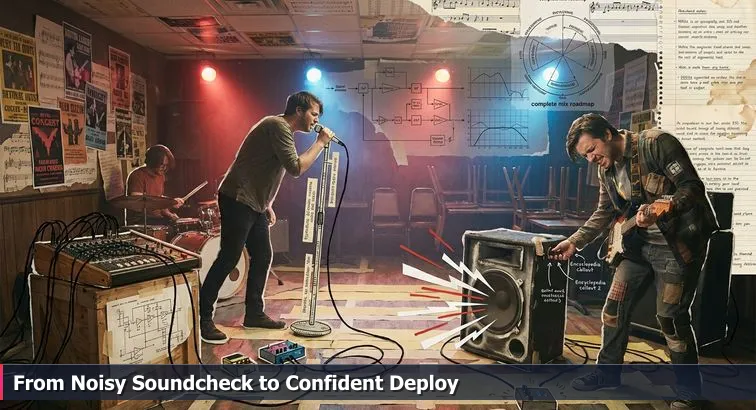
The first scream of feedback in a cramped bar can make even a tight band feel like amateurs. You know your parts, you’ve rehearsed for weeks, but the moment you step into a new room with a different mixer, strange speakers, and a sketchy cable or two, everything suddenly feels fragile and out of control. That’s where a lot of full stack developers find themselves with Docker: they know React, they know Node, they’ve followed tutorials, but the minute they switch “venues” - a teammate’s laptop, a CI server, a cloud host - the stack howls.
Maybe that sounds familiar. You’ve pasted a Dockerfile and a docker-compose.yml from an AI tool, run docker compose up, and watched everything spin to life…until a port conflict appears, containers can’t see each other, or a leaked .env file turns into an embarrassing security risk. You’re not clueless - you’re shipping real code - but it still feels like you’re chanting magic incantations instead of confidently tracing the signal chain from your frontend, through your backend, into your database, and out to the browser.
Part of the tension is that Docker stopped being “nice resume candy” a while ago. According to the 2025 Docker State of Application Development report, container usage hit around 92% of IT professionals, and Docker itself commands roughly 42.77% of the DevOps tech stack share. At the same time, industry breakdowns of full stack roles show that employers now expect React or another frontend framework, Node.js or a similar backend, cloud basics, and at least working knowledge of containers and CI/CD, not just JavaScript alone.
“Docker and Kubernetes are now essential, representing the highest DevOps skill demand. Modern full-stack developers deploy and manage production code, requiring knowledge of containerization, CI/CD, and cloud platforms.” - Edstellar, “Top 18 Must-Have Skills for Full Stack Developers in 2026”
AI has made this gap feel even weirder. Tools like ChatGPT can scaffold a Docker setup in seconds, suggest multi-stage builds, and spit out GitHub Actions workflows before your coffee cools. That’s helpful, but it also raises the bar: if everyone can generate configs, the developers who stand out are the ones who can reason about them, debug them when the “cables” are mispatched, and design sane, secure production workflows. Copying YAML is table stakes; understanding the execution layer is where your value lives.
This guide is about turning Docker from a mysterious rack of knobs into a clear signal chain you actually own. We’ll start with mental models - images vs containers, layers, networks, volumes - and then ground them in real workflows: a MERN app with hot reloading, a simple multi-stage build for production, and a path from docker compose up on your laptop to a practical deployment target. The goal is that by the end, Docker stops feeling like a noisy soundcheck and starts feeling like a rig you can run confidently in any “venue” you deploy to.
In This Guide
- Introduction: the Docker soundcheck problem
- Why containers matter for full stack devs
- A mental model: the Docker signal chain
- Dockerizing a Node/Express API from scratch
- Containerizing a React/Vite frontend (dev and prod)
- Compose your MERN stack: hot reloading and networking
- Environment variables, secrets, and safe practices
- Production-ready Dockerfiles and hardening tips
- Deploying containers: Compose, ECS, Swarm, and K8s
- CI/CD with Docker images and GitHub Actions
- Containers for AI and data stacks in 2026
- When Docker is overkill - and when it’s essential
- Common pitfalls and debugging like an engineer
- Learning Docker the smart way and career fit
- Putting it all together: from noisy check to confident deploy
- Frequently Asked Questions
When you’re ready to ship, follow the deploying full stack apps with CI/CD and Docker section to anchor your projects in the cloud.
Why containers matter for full stack devs
Docker is part of the full stack now
For full stack developers, containers have quietly moved from “nice extra” to baseline expectation. Skill maps for modern roles point out that employers don’t just want React and Node anymore; they want people who can package, ship, and run apps reliably across environments. A recent breakdown of in-demand abilities notes that full stack developers are “more valuable than ever,” with employment projected to grow about 7% over the coming decade and organizations prioritizing candidates who understand infrastructure as well as code, not just one side of the stack (EsenceWeb’s 2026 full stack skills guide). AI can now generate Dockerfiles and deployment snippets in seconds, but that just means more resumes will look similar; the differentiator is whether you actually understand the containers your code runs in.
Consistent environments and production parity
Containers matter because they attack the ugliest, least glamorous problems full stack devs face: environment drift and fragile deployments. Instead of installing Node, MongoDB, Redis, and system packages differently on every laptop and server, you define them once in images and run them as isolated units. As one overview of containerization using Docker puts it, containers package “code, runtime, system tools, and libraries” so applications can run consistently across development, testing, and production. For a MERN app, that means your React build, Node API, and database all behave the same way on your machine, your teammate’s machine, the CI server, and the cloud host - turning the infamous “works on my machine” problem into a much rarer bug instead of a daily ritual.
Containers vs virtual machines
Another reason containers are so central for full stack work is efficiency. Traditional virtual machines emulate an entire operating system for each app, which is heavy for the kind of small, composable services common in JavaScript stacks. Containers, by contrast, share the host OS kernel while isolating processes, which makes them ideal for quickly spinning up multiple services - API, frontend, database, background worker - on a single box. That lower overhead translates into denser deployments, faster startup times, and simpler local setups.
| Aspect | Containers | Virtual Machines |
|---|---|---|
| Resource usage | Lightweight, share host OS kernel | Heavier, each VM runs a full guest OS |
| Startup time | Seconds; great for dev feedback loops | Minutes; slower for iterative work |
| Typical use in JS stacks | Running Node APIs, React builds, databases per service | Hosting entire environments or legacy monoliths |
| Operational focus | Microservices and CI/CD pipelines | Traditional server-style management |
Onboarding, rollback, and team velocity
Beyond the tech details, containers change team dynamics. A new hire can clone the repo, run docker compose up, and get the entire stack - frontend, backend, and backing services - without hunting through wikis or installing half a dozen tools. When something goes wrong in production, you roll back to a previous image tag instead of praying that a long, fragile “server setup doc” was followed correctly. In customer stories from large organizations, this shift to image-based deployments is credited with deployment times improving by up to 75% and infrastructure footprints shrinking by around 40% as teams move from scattered, VM-based setups to containerized services. For you as a full stack dev, that means the more you understand this execution layer, the more you can own not only the feature you built, but how quickly and safely it reaches every “venue” your app has to play in.
A mental model: the Docker signal chain
Before Docker commands start to feel intuitive, it helps to have a mental picture of what’s actually happening when you run your app. Think back to that bar: your voice goes into a mic, through a cable, into the mixer, through EQ and effects, into an amp, then out of the speakers into the room. When something squeals, the engineer traces that whole path. With containers, your “signal chain” is code → Dockerfile → image → container → network/volumes → host. Once you can walk that path in your head, docker build and docker compose up stop being magic spells and start being predictable routing.
Images vs containers: the rig diagram vs the live setup
An image is the blueprint; a container is the running rig. A Docker image is a read-only template that captures your base OS, installed tools (like Node), dependencies, and app files. A container is a live instance of that image with its own process, filesystem, and configuration. The distinction is similar to a wiring diagram versus the actual amps and pedals on stage. As the Quash “Docker Tutorial 2025” guide explains, you can start many containers from the same image, just like you can set up multiple identical rigs from a single diagram, which is exactly how teams scale Node or React services horizontally.
Layers and caching: stacking effects in order
Images are built from layers, and each instruction in your Dockerfile adds one more to the stack. This is where Docker gets its speed: unchanged layers are cached and reused on subsequent builds, so you don’t keep “reinstalling everything” when only your source code changed. A typical Node Dockerfile might install dependencies in one step, then copy in the app code in a later step; edits to your JS only invalidate the final layer. A deep dive on images and layers from Hackernoon’s Docker tutorial series stresses that ordering instructions this way is one of the simplest optimizations you can make for faster local feedback and quicker CI pipelines.
Client, daemon, and registry: who does what in the chain
When you type docker build, there are a few different “band members” involved. The Docker client is the CLI you interact with; it sends instructions to the Docker daemon, which is the background process that actually builds images and runs containers. Registries (like Docker Hub or private repositories) are where those built images are stored and later pulled from. Understanding that separation matters once you move beyond your laptop: in a CI job, for example, the workflow file acts as the client, some runner host executes the daemon, and the resulting image is pushed to a registry for your servers to pull. Thinking in terms of this end-to-end signal chain makes it much easier to debug when something goes silent or starts “feeding back” in your stack.
Dockerizing a Node/Express API from scratch
Getting your first Node/Express API into a container is like plugging just the vocal mic into the mixer before the whole band shows up. You’re focusing on a single signal so you can see how the chain behaves end to end: code → Dockerfile → image → container → port on your machine. Once you’ve done this deliberately a couple of times (ideally without copy-pasting an AI-generated Dockerfile), the rest of Docker starts feeling a lot less like magic and a lot more like wiring.
Start with a minimal Express API
Begin in a plain api/ folder with the smallest possible Express app. That means a package.json with a start script, and an index.js that reads PORT from the environment and exposes a simple /api/health route. Keeping this tiny helps you see that when a request hits localhost:4000, it’s really traveling through your container. The official Docker educational resources recommend this kind of minimal example for learning because it isolates Docker behavior from framework complexity and gets you used to attaching a terminal, watching logs, and restarting a single service.
api/
  package.json
  package-lock.json
  src/
    index.js
// src/index.js
const express = require('express');
const app = express();
const PORT = process.env.PORT || 4000;

app.get('/api/health', (req, res) => {
  res.json({ status: 'ok', time: new Date().toISOString() });
});

app.listen(PORT, () => {
  console.log(API listening on port ${PORT});
});
Add a .dockerignore to keep noise out of the mix
Before you ever run docker build, create a .dockerignore file in api/ so you’re not sending your entire working directory into the build context. At a minimum, ignore node_modules, git metadata, logs, and .env files. This keeps images smaller, builds faster, and drastically reduces the odds of accidentally baking secrets into an image. A cautionary write-up on how .env files ended up in Docker images walks through exactly how a casual COPY . . can leak credentials, which is why treating .dockerignore as part of your “security gear” from day one is so important.
# .dockerignore
node_modules
npm-debug.log
Dockerfile
.dockerignore
.git
.gitignore
.env
Write a dev Dockerfile and plug in hot reloading
For development, you want a Dockerfile that installs dependencies once, runs your app with nodemon, and lets you edit code on your host while the container reloads. A common pattern is to use node:20-alpine, set WORKDIR /app, copy package*.json, run npm install, then copy the rest of the source and expose port 4000. You build it with docker build -f Dockerfile.dev -t docker-demo-api:dev ., then run it mapped to 4000:4000 and mounted with -v $(pwd):/app plus a separate /app/node_modules volume so your dependencies stay inside the container. That combination completes the dev “signal chain”: edits on your machine → bind mount into the container → nodemon restart → response visible in the browser. As one learner put it in Nucamp’s Docker for Beginners in 2026 piece, “After learning just the basic Docker and Compose commands, I went from dreading environment setup to being able to recreate entire stacks on any machine in minutes.”
# Dockerfile.dev
FROM node:20-alpine

WORKDIR /app

COPY package*.json ./
RUN npm install

COPY . .

EXPOSE 4000

CMD ["npm", "run", "dev"]
# build
cd api
docker build -f Dockerfile.dev -t docker-demo-api:dev .

# run with hot reload
docker run --rm -p 4000:4000 \
  -v $(pwd):/app \
  -v /app/node_modules \
  docker-demo-api:dev
“After learning just the basic Docker and Compose commands, I went from dreading environment setup to being able to recreate entire stacks on any machine in minutes.” - Learner testimonial, Nucamp, “Docker for Beginners in 2026”
Containerizing a React/Vite frontend (dev and prod)
Dev containers with hot reloading
When you move your React or Vite app into a container for development, the goal isn’t to serve production traffic; it’s to keep your dev experience (fast hot reloads, friendly error overlays) while making your environment reproducible. A typical setup uses node:20-alpine as the base image, sets WORKDIR /app, installs dependencies, and runs the Vite dev server on port 5173. You then map that port to your host and use bind mounts so file changes on your machine immediately reflect in the container. Guides on common Docker use cases call out this pattern as one of the most practical benefits of containers: the ability to standardize local dev setups without giving up fast feedback loops.
# client/Dockerfile.dev
FROM node:20-alpine

WORKDIR /app

COPY package*.json ./
RUN npm install

COPY . .

EXPOSE 5173

CMD ["npm", "run", "dev", "--", "--host", "0.0.0.0"]
# build
cd client
docker build -f Dockerfile.dev -t docker-demo-client:dev .

# run with hot reload
docker run --rm -p 5173:5173 \
  -v $(pwd):/app \
  -v /app/node_modules \
  docker-demo-client:dev
Production-ready multi-stage build for React
For production, you don’t want to ship a Node dev server; you want static assets behind a lean web server. A multi-stage build does exactly that: the first stage (“builder”) uses node:20-alpine to run npm run build and emit your optimized bundle into /app/dist. The second stage (“runner”) swaps to nginx:1.27-alpine, wipes the default site, and copies in your built files. The result is a small, focused image that only contains Nginx and your static assets, which aligns with best-practice recommendations for minimizing attack surface and startup time in production.
# client/Dockerfile
FROM node:20-alpine AS builder

WORKDIR /app
COPY package*.json ./
RUN npm install
COPY . .
RUN npm run build

FROM nginx:1.27-alpine AS runner

RUN rm -rf /usr/share/nginx/html/*
COPY --from=builder /app/dist /usr/share/nginx/html

EXPOSE 80

CMD ["nginx", "-g", "daemon off;"]
# build and run
cd client
docker build -t docker-demo-client:prod .
docker run --rm -p 8080:80 docker-demo-client:prod
| Aspect | Dev container (Dockerfile.dev) | Prod container (multi-stage Dockerfile) |
|---|---|---|
| Base image | node:20-alpine only | Builder: node:20-alpine; Runner: nginx:1.27-alpine |
| Entry command | npm run dev -- --host 0.0.0.0 |
nginx -g 'daemon off;' |
| Use case | Hot reloading, debugging, rapid iteration | Serving static assets in production |
| Image size & surface | Larger, includes Node tooling | Smaller, runtime-only web server |
This split between dev and prod setups fits how modern frontend stacks are used in practice. Analyses like Imaginary Cloud’s comparison of top front-end frameworks point out that React remains a default choice for complex SPAs and dashboards, which makes a reliable build-and-serve pipeline non-negotiable. By containerizing both your Vite dev server and your production Nginx image, you’re not just “Dockerizing for fun” - you’re defining a repeatable path from local development to a static, cache-friendly deployment.
“React continues to be the go-to choice for large-scale web applications, where a robust build process and optimized delivery are essential.” - Imaginary Cloud team, “Top 10 Best Front End Frameworks in 2026 Compared”
Compose your MERN stack: hot reloading and networking
From single services to a full MERN “mix”
Running your API or frontend in its own container is like soundchecking one instrument at a time; Docker Compose is the mixing board that lets you bring the whole MERN band up together. With a single docker-compose.yml, you can define a client (React/Vite), an api (Node/Express), and mongo (MongoDB) as separate services, then start them all with docker compose up. Compose automatically creates a private network so services can reach each other by name, which mirrors patterns you’ll see in real projects - guides like “Containerizing your full-stack Node app using Docker Compose” on DEV Community use the same approach to wire multiple containers into one coherent stack.
Project layout and hot-reload configuration
A practical layout puts your pieces under a single repo root, for example a mern-app/ folder with api/ and client/ subdirectories, each with its own dev Dockerfile. In docker-compose.yml, you point api and client at their respective contexts and dev Dockerfiles, then use bind mounts like ./api:/app and ./client:/app plus anonymous /app/node_modules volumes. That gives you hot reloading for both backend and frontend while still building on a standard container image. A typical MERN compose file also declares a mongo service from mongo:7, persists its data using a named volume, and uses depends_on so the database and API come up before the client, mirroring multi-service patterns seen in community examples.
Networking and environment wiring
Networking is where Compose really earns the “mixing board” metaphor. Inside your containers, you call services by their Compose names - your API connects to Mongo at mongodb://mongo:27017/mernapp, and your client might talk to the API at http://api:4000 in production-like setups. From your host machine, though, you still use localhost plus the published ports (5173 for Vite, 4000 for the API, 27017 if you need direct DB access). A popular Stack Overflow thread on running multiple Node.js services in a single docker-compose file shows this dual addressing model in action and highlights how Compose-managed networking simplifies service discovery without custom scripts.
| Context | How you reach the API | How the API reaches Mongo | Typical use |
|---|---|---|---|
| From your host | http://localhost:4000 | Use a DB client on localhost:27017 (optional) | Manual testing in browser or API tools |
| From the client container | http://api:4000 (service name) | N/A | Browser calling backend through containerized frontend |
| From the API container | N/A | mongodb://mongo:27017/mernapp | Application code connecting to database |
With that wiring in place, docker compose up --build becomes your one-button soundcheck: it boots your React dev server, Express API, and MongoDB together, all with hot reload and consistent routing. Once you’re comfortable tracing a request from the browser, through the client container, into the API, and down to Mongo on the internal network, you’ve effectively learned how to read the signal chain for a full stack app - knowledge that transfers directly to more advanced setups with caches, workers, or even AI services later on.
Environment variables, secrets, and safe practices
Config vs secrets: know what you’re passing around
Not all environment variables are created equal, and Docker doesn’t magically make that distinction for you. Things like PORT, feature flags, or UI-only URLs (for example, a public VITE_API_URL) are configuration - they’re fine to commit in a shared .env for development. Database passwords, JWT signing keys, and third-party API keys are secrets - they should never live in source control or be baked into an image layer. Containerization papers like the overview from SciTePress on Docker and Kubernetes in web development call this out explicitly: containers improve consistency, but they don’t excuse sloppy handling of credentials.
How secrets accidentally end up in images
The classic foot-gun is a broad COPY . . in your Dockerfile combined with a missing .dockerignore. If your working directory contains a .env file with production credentials, Docker happily tars it up into the build context and bakes it into an image layer. Because layers are immutable and cached, that secret sticks around even if you later delete the file in a subsequent instruction. This is why many real-world postmortems from teams adopting containers revolve around the same story: a “quick and dirty” Dockerfile for a Node or Python app that quietly ships secrets to a registry where they can be pulled, inspected, or logged in ways nobody intended.
Safer patterns: runtime injection and Docker Secrets
A safer mental model is: images hold code and non-sensitive defaults; secrets are injected at runtime. For local development, that might mean a .env file that Docker Compose reads and passes into environment: only for your machine. For production, mature setups rely on a secret store (cloud KMS, parameter store, or Docker-native mechanisms) and only mount or inject secrets into running containers, never into the image build. An article on Docker base image best practices emphasizes this separation as part of a broader hardening strategy: keep images minimal, immutable, and free of credentials, then let your platform handle secret delivery.
Docker Secrets (when you’re using Swarm or compatible tooling) follow exactly this philosophy. You define a secret once, reference it in your service, and Docker mounts it as a file under /run/secrets/<name> where only that container can read it. Your Node app can then do something like:
const fs = require('fs');
const dbPassword = fs.readFileSync('/run/secrets/db_password', 'utf-8').trim();
With this setup, the password never appears in the Dockerfile, never sits in an image layer, and isn’t visible in docker inspect. Treating environment variables and secrets this way turns them from loose, mislabeled cables into clearly routed lines on your “stage plot,” making it much less likely that a quick change in one environment turns into a security incident in another.
Production-ready Dockerfiles and hardening tips
Why your dev Dockerfile isn’t enough for production
A Dockerfile that works on your laptop is not automatically safe or efficient in production. Single-stage images that install build tools, dev dependencies, and caches alongside your runtime quickly bloat into gigabyte-sized artifacts and expose more surface area than necessary. In contrast, hardening guides and case studies in resources like Docker’s official image layer documentation emphasize two big shifts for production: use multi-stage builds to separate build and runtime, and run on minimal base images with only what your app truly needs. Those two changes alone speed up CI/CD, reduce registry and network load, and give attackers far less to work with if something goes wrong.
Multi-stage builds: one image to build, another to run
In a multi-stage Dockerfile for a Node/Express API, the first stage (“builder”) uses a full Node image to install dependencies and run any build step (like compiling TypeScript). The second stage (“runner”) starts from a slim base, copies in only the built app and production dependencies, and defines the command to start your server. That means tools like npm, compilers, and test frameworks never make it into the final image. A typical pattern with node:20-alpine looks like this: build in one stage, copy node_modules and compiled output into a fresh image, set NODE_ENV=production, and expose just the API port. Because each instruction still creates a layer, Docker’s cache can reuse the expensive parts (like npm install) across builds, while your final artifact stays lean and focused.
# Stage 1: builder
FROM node:20-alpine AS builder
WORKDIR /app
COPY package.json ./
RUN npm install
COPY . .
# RUN npm run build  # if using TypeScript or a build step

# Stage 2: runner
FROM node:20-alpine AS runner
WORKDIR /app
COPY --from=builder /app/package.json ./
COPY --from=builder /app/node_modules ./node_modules
COPY --from=builder /app/src ./src
ENV NODE_ENV=production
EXPOSE 4000
RUN addgroup -S appgroup && adduser -S appuser -G appgroup
USER appuser
CMD ["node", "src/index.js"]
Hardening the runtime: minimal base, non-root, and healthchecks
With the build step isolated, you can now focus on hardening the runtime container. Running as a non-root user (as in the example above) means that even if an attacker finds a vulnerability in your app or a dependency, they don’t immediately get root access to the container’s filesystem or host. Choosing small bases like Alpine or other slim images reduces the number of system packages and binaries available to be exploited. Finally, production Dockerfiles should expose a simple health endpoint (for example, /api/health) and define a HEALTHCHECK so orchestrators can restart unhealthy containers automatically. That combination of minimal base image, restricted user, and runtime monitoring is what turns “it runs” into “it runs safely and predictably under load.”
HEALTHCHECK --interval=30s --timeout=3s --retries=3 \
  CMD wget -qO- http://localhost:4000/api/health || exit 1
| Aspect | Single-stage Dockerfile | Multi-stage, hardened Dockerfile |
|---|---|---|
| Included tools | Build + dev + runtime tools all in one image | Build tools only in builder; runtime is app + prod deps |
| Image size | Larger, more layers and unused binaries | Smaller, focused on what’s needed to run |
| Security surface | More packages to patch and secure | Reduced attack surface, can run as non-root |
| Operational behavior | No built-in health signal | HEALTHCHECK enables automatic restarts |
“Docker is a game changer for how we manage and deploy applications, but you only see the full benefit when images are small, secure, and predictable.” - Software Engineer review, Capterra, “Docker Reviews 2026” (capterra.com)
Deploying containers: Compose, ECS, Swarm, and K8s
Picking the right “venue” for your containers
Getting docker compose up working locally is like nailing soundcheck in your practice space; deploying is about playing the same set in different venues without everything falling apart. Once your services are containerized, you face a spectrum of choices: keep using Docker Compose on a single server, move to a managed container service like AWS ECS, run your own lightweight cluster with Docker Swarm, or commit to full-blown Kubernetes. Each option handles scheduling, networking, and scaling differently, and as a full stack dev you don’t need to be an expert in all of them - you just need to understand what problems they solve so you can choose the right level of complexity for your app.
Compose in production vs managed services
For solo projects and small teams, running Docker Compose directly on a VPS or bare-metal box is still common. You build and push images from CI, SSH into the server (or use automation), then run docker compose pull and docker compose up -d to deploy. As long as you harden the host, keep backups, and monitor resource usage, this single-host approach can be simple and effective. When you outgrow that setup - or need better autoscaling, load balancing, and secret management - managed container services like AWS ECS or Azure Container Apps let you keep building images the same way while offloading the harder parts of scheduling and infrastructure.
Swarm and Kubernetes: choosing your level of complexity
Somewhere between “SSH and Compose” and “enterprise Kubernetes” sits Docker Swarm: it uses a Compose-like YAML syntax, but lets you run your services across multiple nodes with built-in service discovery and failover. Community guides, such as the MERN-focused comparison on DevOps.dev’s Docker vs Kubernetes article, often recommend Swarm or ECS for small-to-medium apps and reserve Kubernetes for cases where you truly need advanced routing, fine-grained autoscaling, and a dedicated platform team. The key is to recognize that all of these are just different “mixing boards” for the same containers, not entirely different worlds.
| Option | Typical scope | Operational complexity | Best suited for |
|---|---|---|---|
| Docker Compose | Single host | Low - manual updates and monitoring | Side projects, small SaaS, prototypes |
| AWS ECS / similar | Managed cluster | Medium - cloud concepts, simpler than K8s | Teams wanting autoscaling without DIY clusters |
| Docker Swarm | Self-managed cluster | Medium - Compose-like, light orchestration | Small teams needing HA across a few nodes |
| Kubernetes | Large, complex systems | High - steep learning curve, many primitives | Organizations with platform/DevOps teams |
Whichever “venue” you choose, the containers you build don’t change; only how they’re scheduled and wired together does. That’s why understanding images, containers, networks, and healthchecks is so valuable - it transfers from a single Docker host to any orchestration platform you might encounter. As one AI-focused careers piece on TechGig’s rundown of Docker for AI developers puts it, containers have become the “tracks” that keep development on a steady, smooth, and efficient path across environments, whether you’re running a MERN app on a tiny VPS or a fleet of services behind a managed load balancer.
“In 2026, Docker containers will be the ‘tracks’ to keep software development on a steady, smooth, and efficient path, especially as teams wire them into more sophisticated platform and AI workflows.” - TechGig editorial team, “5 Docker Containers Every AI Developer Needs in 2026”
CI/CD with Docker images and GitHub Actions
From container builds to automated pipelines
Once your app lives in containers, CI/CD becomes much more concrete: your pipeline’s job is to build images, run tests inside those images, optionally scan for vulnerabilities, and then push tags to a registry for deployment. GitHub Actions is a natural fit here because it hooks directly into your repo and can run on every push or pull request. Instead of “it worked on my laptop” being the final test, your Dockerfile becomes the single, repeatable spec that your Actions workflow uses to assemble the runtime your code will actually see in production. AI tools can now scaffold these workflows for you, but the real value is knowing what each step does so you can debug a failing job at 2 a.m. instead of staring at a wall of YAML.
A minimal GitHub Actions workflow for Docker
A good starting point is a workflow that runs on pushes to main, logs into your container registry, builds your Node API image, and pushes it with a predictable tag. The docker/build-push-action encapsulates most of the plumbing, so your YAML stays readable. Here’s a trimmed-down example targeting an api/ directory with a production Dockerfile:
name: CI/CD API

on:
  push:
    branches: [ main ]

jobs:
  build-and-push:
    runs-on: ubuntu-latest

    steps:
      - name: Checkout
        uses: actions/checkout@v4

      - name: Log in to Docker Hub
        uses: docker/login-action@v3
        with:
          username: ${{ secrets.DOCKERHUB_USERNAME }}
          password: ${{ secrets.DOCKERHUB_TOKEN }}

      - name: Build and push image
        uses: docker/build-push-action@v5
        with:
          context: ./api
          file: ./api/Dockerfile
          push: true
          tags: myorg/mern-api:latest
At this point, every commit to main produces a fresh image in your registry that you can pull from staging or production. That lines up with tooling recommendations in resources like Edureka’s 2026 full stack tools guide, which calls out Git, Docker, and CI systems as core parts of a modern full stack developer’s toolkit rather than “DevOps extras.”
Integrating tests and image scanning
Once the basic build-and-push flow is stable, the next step is to make CI do more than just compile: add jobs that run your test suite inside a container, and introduce an image scanning step to catch known vulnerabilities before they ever reach production. A typical pattern is to have one job build the image and run tests (failing fast if anything breaks), then have a second job that depends on the first and runs a scanner against the built image before pushing. Over time, you can extend the pipeline with environment-specific deploy steps, blue/green rollouts, or notifications when a scan fails.
| Pipeline stage | What it does | How Docker helps |
|---|---|---|
| Build | Creates an image from your Dockerfile | Same image used locally, in CI, and in production |
| Test | Runs unit/integration tests | Tests run in the exact runtime your app will ship with |
| Scan | Checks image for known CVEs | Surfaces base image and dependency issues early |
| Push/Deploy | Publishes image and rolls out changes | Versioned tags simplify rollbacks and promotion |
Putting this together turns your GitHub repo into an assembly line: code in, tested and scanned container images out. As one Nucamp article on Docker and CI/CD for beginners points out, this shift is what lets full stack developers “own the execution layer,” because they’re not just writing React and Node, they’re defining how every change moves from a pull request to a running container in the cloud.
“CI/CD pipelines are no longer optional; they are the backbone of modern software delivery, giving developers the confidence to ship changes frequently and safely.” - Edureka Editorial Team, “Top 10 Full Stack Developers Tools to Master in 2026”
Containers for AI and data stacks in 2026
AI dev environments are stacks, not one-offs
Most AI work today isn’t “just a notebook.” A realistic setup might include Jupyter or another IDE, a vector-capable database, a small API server around an LLM, and maybe a scheduler or dashboard. Manually installing and wiring all of that on every machine is painful; containerizing it turns the whole thing into a reproducible stack you can spin up or tear down at will. Industry rundowns like the USDSI piece on Docker containers transforming LLM development highlight how standard images for JupyterLab, model servers, and vector databases make AI environments portable across laptops and cloud instances, which is exactly what you need if you’re a full stack dev dipping into data science and ML.
Using Docker Compose to spin up an AI “lab”
Compose makes it easy to treat your AI tooling like a band on the same stage: one service for your API, one for the database, one for notebooks. A simple docker-compose.yml might define a FastAPI or Node-based api service that talks to an LLM API and stores embeddings in Postgres, a db service running Postgres with pgvector, and a jupyter service so you can explore data interactively. With a single docker compose up, everyone on the team gets the same versions of Python, drivers, and database extensions, without local install drama.
version: "3.9"

services:
  api:
    build:
      context: ./ai-api
    environment:
      - OPENAI_API_KEY=${OPENAI_API_KEY}
    ports:
      - "8000:8000"
    depends_on:
      - db

  db:
    image: postgres:16-alpine
    environment:
      - POSTGRES_USER=aiuser
      - POSTGRES_PASSWORD=changeme
      - POSTGRES_DB=aiapp
    volumes:
      - ai_db_data:/var/lib/postgresql/data
    ports:
      - "5432:5432"

  jupyter:
    image: jupyter/datascience-notebook
    ports:
      - "8888:8888"
    volumes:
      - ./notebooks:/home/jovyan/work

volumes:
  ai_db_data:
Why containers beat ad-hoc installs for data work
For AI and data workflows, the difference between “it worked on my laptop” and “the team can actually reproduce this” is often just whether you’re using containers. Local installs tie notebooks to specific OS versions, Python environments, and drivers; containerized stacks define everything explicitly in code. That matters even more when GPU drivers, CUDA versions, or database extensions enter the picture, because a mismatch can silently break experiments. The table below summarizes the trade-offs between a few common patterns you’ll see in real teams.
| Approach | Setup time | Reproducibility | Best suited for |
|---|---|---|---|
| Manual local installs | Slow, repeated per machine | Low - fragile across OS/env changes | Solo tinkering on a single laptop |
| Docker + Compose stack | Fast after initial config | High - same images everywhere | Teams, classrooms, long-lived projects |
| Cloud notebook only | Fast to start, managed by provider | Medium - depends on provider settings | Light analysis, demos, short experiments |
From experiments to production LLM apps
Containers also give you a clean path from “notebook experiment” to “production AI feature.” The same vector database you prototyped against in Jupyter can run as a service behind your Node or Python API; the same Dockerfile you used in development can be built and deployed through CI/CD. Articles like XDA’s rundown of a non-negotiable productivity Docker stack emphasize this idea: treat core tools (databases, dashboards, dev environments) as long-lived containers you can move between machines. As a full stack developer, knowing how to define and orchestrate these AI-focused services with Docker and Compose turns your “AI features” from fragile one-offs into maintainable parts of your broader application rig.
When Docker is overkill - and when it’s essential
When containers are more than you need
There are plenty of situations where wiring up Docker, Compose, and a registry is heavier than the problem you’re trying to solve. If you’re shipping a static React site to Vercel or a simple marketing page to a CDN, the platform is already handling build and deployment for you. Likewise, small serverless APIs on services like AWS Lambda or Cloudflare Workers don’t benefit much from being wrapped in containers during the early stages; you get routing, scaling, and deployment via configuration, not by managing your own runtime. Reviews of Docker on sites like SoftwareWorld’s 2026 product overview also point out that Docker Desktop can be a noticeable resource hog on modest machines, which can be a real drawback if you’re just trying to get through a bootcamp project on a low-RAM laptop.
Where Docker becomes non-negotiable
Once you move beyond a single frontend or lambda into a real application stack, containers start to shift from “nice-to-have” to required. A typical MERN or full stack app quickly adds multiple services: API, frontend, database, maybe a cache, a background worker, and an admin UI. At that point, manually reproducing the environment on every laptop, CI runner, and production host becomes fragile and time-consuming. Guides on modern full stack careers, like Metana’s beginner guide to full stack development, stress that developers are now expected to understand how their code is deployed and run, not just how to write React components or Express routes. Containers, and especially Docker Compose, give you a portable “rig” you can bring to any machine and expect the same behavior.
| Approach | When it fits | Pros | Cons |
|---|---|---|---|
| No Docker | Static sites, tiny serverless APIs, quick throwaway demos | Zero container overhead, faster initial setup | Harder to reproduce envs, limited path to more complex stacks |
| Docker for dev only | Solo or small-team apps with a couple of services | Consistent local envs, easy onboarding, smoother CI | Still need a deployment story for production |
| Docker + orchestration | Multi-service apps, teams, AI/data stacks, self-hosting | Scalable, repeatable deployments across environments | More moving parts to learn and maintain |
A practical decision framework
A simple rule of thumb is: if your app has only one moving piece and your hosting provider hides the runtime from you, Docker is optional; as soon as you have multiple processes, teammates, or a need to self-host reliably, containers are worth the investment. Even when you start without Docker, it’s smart to design with it in mind: keep configuration in environment variables, separate build and runtime concerns, and think of your app as something that could run in a container tomorrow. That way, when you hit the limits of “just npm start” and a single VPS, you’re ready to move into a containerized setup without a full rewrite.
“While Docker is powerful and flexible, it can consume significant system resources, especially on machines with limited RAM, which makes it overkill for small, simple applications.” - Docker user review, SoftwareWorld, “Docker Reviews Jan 2026: Pricing & Features”
Common pitfalls and debugging like an engineer
Trace the signal chain instead of guessing
When a containerized app starts “screaming” with cryptic errors, the worst thing you can do is start random-tweaking YAML and Dockerfiles. A more reliable approach is to think like a sound engineer and trace the full signal chain: config → Dockerfile → image → container → network/volumes → host/orchestrator. By checking each link in order, you turn a fuzzy “Docker is broken” feeling into specific questions: did the image build with the right environment variables, is the container actually listening on the expected port, can other services reach it on the internal network, and are data directories mounted where you think they are? Studies on containerization in web development, like the overview published via ResearchGate’s microservices and Docker paper, repeatedly point out that this kind of systematic reasoning is what separates smooth container adoption from frustrating trial-and-error.
Networking and port routing: the “cables” that fail most often
Many of the nastiest Docker bugs boil down to mispatched “cables”: using localhost inside containers instead of service names, forgetting to publish ports on the host, or accidentally colliding with an already-bound port. Inside a Docker network, your services don’t see localhost:4000 for your API; they see http://api:4000 (or whatever you named the service). On the host, your browser still talks to localhost:<published-port>, which might be mapped to a different internal port entirely. When debugging, get in the habit of running docker compose ps to confirm published ports, and docker exec -it <container> sh followed by curl http://other-service:port to test connectivity from inside the network. Treat each failing request like a signal you can trace hop by hop rather than a mysterious black box.
Volumes, permissions, and bloated images
On the storage side, two classes of problems show up over and over: bind mounts that don’t behave as expected (no hot reload, missing files, permission errors), and images that grow so large that builds and deploys crawl. Bind mounts are sensitive to path typos and host OS differences; a missing leading ./ or a Windows path that doesn’t map cleanly into a Linux container can silently give you an empty directory instead of your source. For image bloat, watch for Dockerfiles that copy entire repos (including node_modules, build artifacts, and .git) and skip multi-stage builds; each of those choices adds layers you don’t need.
| Pitfall | Typical symptom | Quick checks |
|---|---|---|
| Wrong host/port routing | Frontend “can’t reach API” or timeouts | Confirm ports: in Compose and test with curl from host and container |
Using localhost inside containers |
Services can’t see each other despite running | Switch to service names (e.g., http://api:4000) on the Docker network |
| Bind mount/path issues | No hot reload, missing files, or permission errors | Check mount paths, container USER, and OS path conventions |
| Bloated single-stage images | Slow CI builds and deploys, huge pulls | Adopt multi-stage builds, minimal bases, and a tight .dockerignore |
When you hit a wall, remember you’re not alone: many teams adopting Docker report that the benefits come with a learning curve around networking and storage. As one reviewer put it in a 2026 writeup on PeerSpot’s Docker reviews, getting the most from containers means “understanding how they interact with their environment, especially in terms of networking and volumes,” not just knowing the basic commands.
“Docker makes application deployment much easier, but troubleshooting container networking and storage can be challenging until your team really understands how those pieces fit together.” - DevOps Engineer, manufacturing sector, PeerSpot Docker review
Learning Docker the smart way and career fit
Why Docker belongs in your learning plan
Learning Docker “on the side” used to feel optional for junior devs; that’s not the reality anymore. Full stack roles increasingly assume you can get an app from repo to running container, understand the basics of images and registries, and talk intelligently about CI/CD and cloud deployment. At the same time, AI tools can now spit out Dockerfiles and Compose configs in seconds, which means the bar for humans has shifted: you stand out not by hand-writing every line of YAML, but by knowing how to design sensible setups, spot security issues, and debug the inevitable networking or build problems. Treating Docker as part of your core stack - alongside JavaScript, React, and Node - puts you in that more valuable category of developer who can own both features and the execution layer they run on.
A practical learning path (not a firehose)
Instead of trying to swallow “Docker + Kubernetes + DevOps” all at once, a smarter approach is to layer skills. Start by getting comfortable with Node/Express and React, then learn to containerize a single service with a clean Dockerfile. Next, bring in Docker Compose to run a full MERN stack with hot reloading locally. From there, add one CI/CD pipeline that builds and pushes images on each commit, and finally explore a single deployment target (like a VPS with Compose or a managed container service). This sequence mirrors the way real teams adopt containers: they begin with local reproducibility, then automate builds, and only later introduce clustering and orchestration when the app and team are ready.
Where Nucamp fits for career-switchers
If you’re a bootcamp grad or career-switcher, it helps when your learning path is structured around that same progression instead of random tutorials. Nucamp’s Full Stack Web and Mobile Development bootcamp is designed exactly for that kind of learner: over 22 weeks, at an early-bird tuition of $2,604, you move through HTML/CSS/JavaScript, into React on the frontend and React Native for mobile, then into Node.js/Express and MongoDB on the backend, finishing with a dedicated 4-week full stack portfolio project. The format - 10-20 hours per week, fully online, with weekly 4-hour live workshops capped at about 15 students - gives you enough time to actually absorb concepts like APIs and data modeling before layering on Docker and deployment. With a Trustpilot rating around 4.5/5 and roughly 80% five-star reviews, it’s positioned as an affordable option for people who need structure and community, not just another video playlist. You can see the full curriculum breakdown on Nucamp’s Full Stack Web and Mobile Development bootcamp page.
Leveling up into AI-era full stack work
Once you have that full stack foundation, the next question is how to stay relevant as more products become AI-powered and more teams expect devs to understand CI/CD and containers. Nucamp’s 25-week Solo AI Tech Entrepreneur bootcamp is one example of a “second stage” program: it assumes you already know JavaScript and a modern framework, then adds Svelte, Strapi, and PostgreSQL on top of Docker and GitHub Actions, while teaching you how to integrate LLM APIs and build a real SaaS product. With early-bird tuition around $3,980, the focus shifts from “can you build a CRUD app?” to “can you ship and operate an AI-enabled product end to end?” Whether you follow that specific path or assemble your own, the pattern is the same: nail the JavaScript stack, learn Docker and basic CI/CD as your execution layer, then apply those skills to building, deploying, and iterating on real products - not just running demos on your laptop.
Putting it all together: from noisy check to confident deploy
By this point, the Docker “mixer” should look a lot less mystical. You’ve seen how a request travels through your stack the same way a vocal travels from mic to speaker: from code, through a Dockerfile, into an image, then a running container, across networks and volumes, and finally onto whatever “stage” you deploy to. Instead of treating docker build and docker compose up as fragile incantations, you can walk that signal chain step by step and ask, “What exactly is happening here?”
Practically, that means you’ve hit several important milestones. You’ve containerized a Node/Express API and a React/Vite frontend in both dev and prod modes, used Docker Compose to run a full MERN stack with hot reloading, and learned how to separate everyday config from sensitive secrets. You’ve seen how multi-stage Dockerfiles and minimal base images harden your services for production, how different deployment “venues” (Compose on a VPS, ECS, Swarm, Kubernetes) sit on a spectrum of complexity, and how GitHub Actions can turn your Dockerfiles into a repeatable CI/CD pipeline. On top of that, you’ve looked at how the same tools power AI and data stacks - Jupyter, APIs, vector databases - all running as containers you can spin up with a single command.
From a career perspective, all of this is part of being a modern full stack developer, not a separate DevOps identity. Overviews of current web app tech stacks, like the best tech stack guide from 5ly, make it clear that React, Node, and a database are only part of the story; teams also expect some grasp of containers, cloud platforms, and deployment automation. AI tools can help you move faster - by generating starter Dockerfiles, Compose files, and workflows - but they don’t remove the need for you to understand images vs containers, environment handling, security trade-offs, and how to debug when the logs start “feeding back.” If anything, they make those foundational skills more valuable, because more of your peers will stop at copy-paste.
The good news is that you don’t need to learn everything at once. Keep practicing the pieces you’ve seen here until they feel routine: spin up a new MERN repo and Dockerize it from scratch, add a basic GitHub Actions workflow, or define a small AI dev stack with Compose. Each time you do, you reinforce the same core mental model and get a little more comfortable running your own rig - whether that’s on your laptop, a teammate’s machine, or a cluster in the cloud. That’s the real shift: Docker stops being a noisy soundcheck you dread and becomes the backbone of a confident, repeatable deploy, no matter which “venue” your code has to play next.
Frequently Asked Questions
Will learning Docker meaningfully help my full-stack career in 2026?
Yes - containers are baseline now: container usage is around 92% and Docker holds about 42.77% of the DevOps tech stack share, so employers expect at least working knowledge of containers plus CI/CD and cloud basics. That knowledge helps you ship consistent MERN stacks, debug environment drift, and own the execution layer rather than just writing code.
Do I need Kubernetes, or is Docker Compose enough for most full-stack apps?
For single-host projects, prototypes, and small teams Docker Compose is usually sufficient and much simpler to operate. Move to managed services (ECS) or Kubernetes only when you need cross-node scheduling, advanced autoscaling, or a platform team - Kubernetes has a high operational complexity compared with Compose or Swarm.
How do I avoid accidentally baking secrets into Docker images?
Treat .dockerignore as essential, avoid broad COPY . instructions, and never commit .env files; instead inject secrets at runtime via a secret store or Docker Secrets (mounted under /run/secrets/name). This prevents credentials from becoming immutable image layers that persist in registries or cached builds.
Can AI-generated Dockerfiles replace learning Docker fundamentals?
No - AI can scaffold Dockerfiles and Compose files in seconds, but copy-pasting configs won’t teach you how layers, networks, volumes, or runtime secrets work. Employers value developers who can reason about, debug, and secure the execution layer that AI-generated YAML alone can't guarantee.
What’s a minimal CI/CD setup to build, scan, and push Docker images?
Start with a GitHub Actions workflow that checks out code, logs into your registry using secrets, then uses docker/build-push-action (e.g., @v5) to build and push an image; add a job to run tests inside the image and an image-scan step before deploy. Run it on pushes to main so every commit produces a tagged image you can promote or roll back.
Still deciding? Check the which is better: bootcamp or computer science degree for full stack recommendation.
Study the Next.js performance and SEO best practices to optimize TTFB, ISR, and metadata per route.
If you want to learn how async/await interacts with Express error handling, see the Node.js and Express in 2026 guide for practical patterns.
For a realistic job-search plan, check the best companies hiring full stack developers in 2026 to see what employers actually value.
Use this practical tutorial for building a React + Node + PostgreSQL app that covers deployment and observability.

Irene Holden
Operations Manager
Former Microsoft Education and Learning Futures Group team member, Irene now oversees instructors at Nucamp while writing about everything tech - from careers to coding bootcamps.